
1. Getting started
Sign up, complete first-run setup, and log in as staff.
Create your restaurant account
New owners set up Harmony in three short steps.
- Open the sign-up page and enter your personal details (name, email, password).
- Enter your business name and type.
- Enter your business address — start typing and pick your location from the suggestions.
📷 Preview coming soon — The 3-step registration flow, side by side: Step 1 details → Step 2 business → Step 3 address.
Tip
Use an email you check often — it's your login and where account notices go.
First-run setup wizard
After signing up, a short wizard gets you ready to trade:
- Confirm your business profile.
- Upload your logo and cover photo.
- Choose a subscription plan.
When you finish, Harmony takes you straight to your dashboard.
📷 Preview coming soon — The setup wizard, showing the logo and cover upload step.
Staff log in
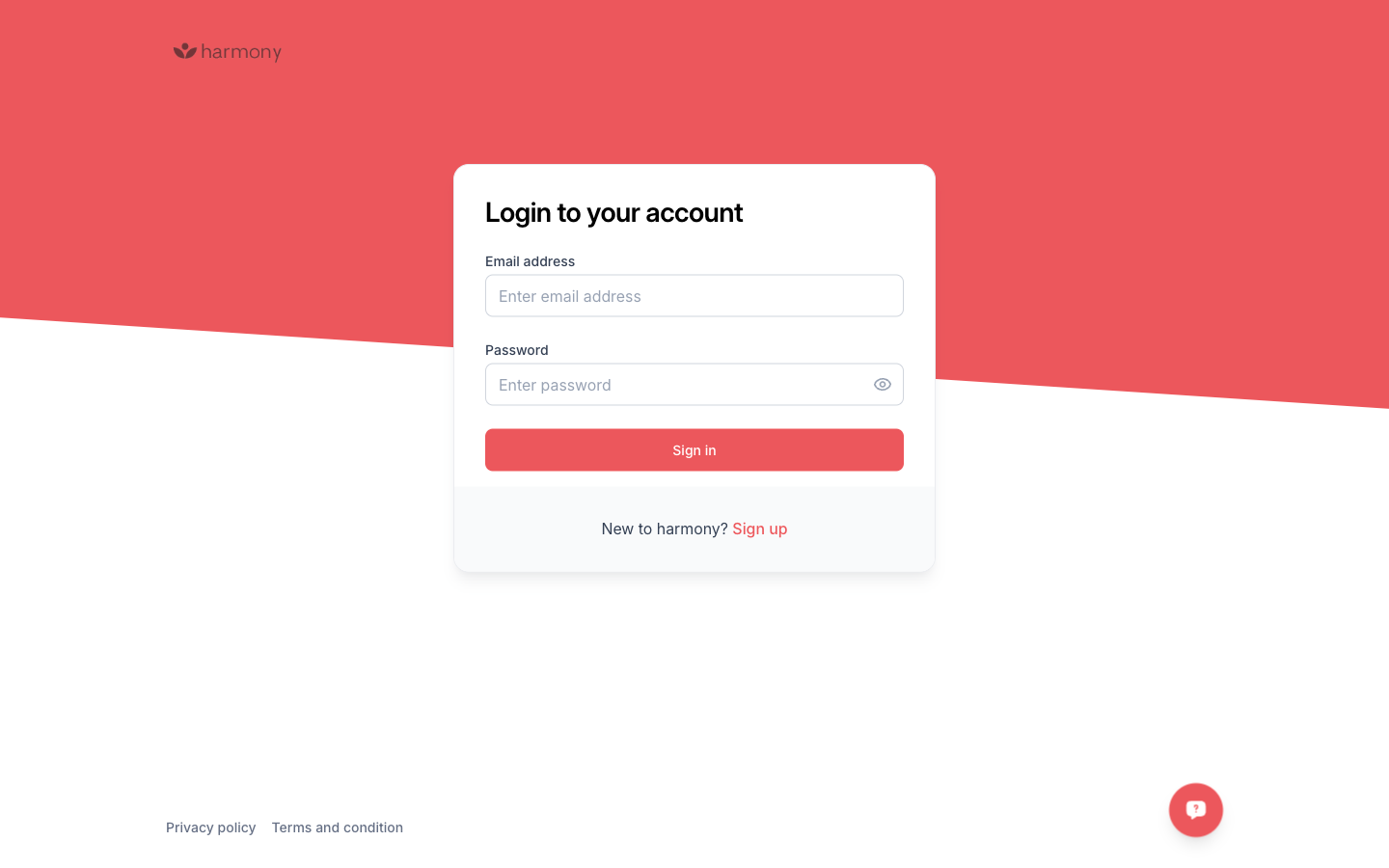
Team members log in with the email and password their manager set up for them.
- Enter your email and password.
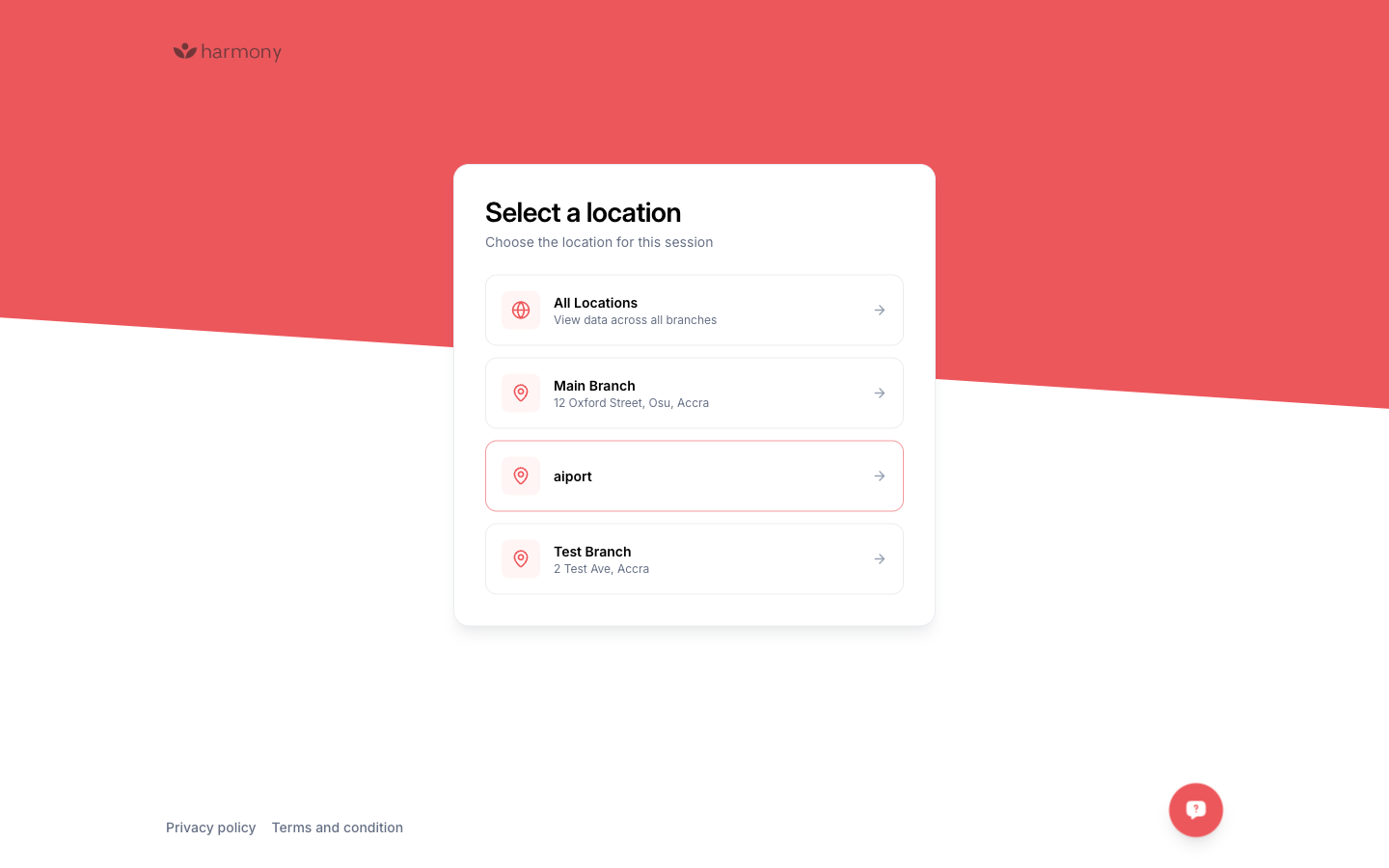
- If you work at more than one location, choose the branch you're working from for this session.
Note
Sessions stay signed in across app restarts but expire after about an hour of inactivity — you'll be asked to log in again.