
6. Managing orders
The Orders area is the hub for every order, before and after billing.
The Orders area is the hub for every order, before and after billing.
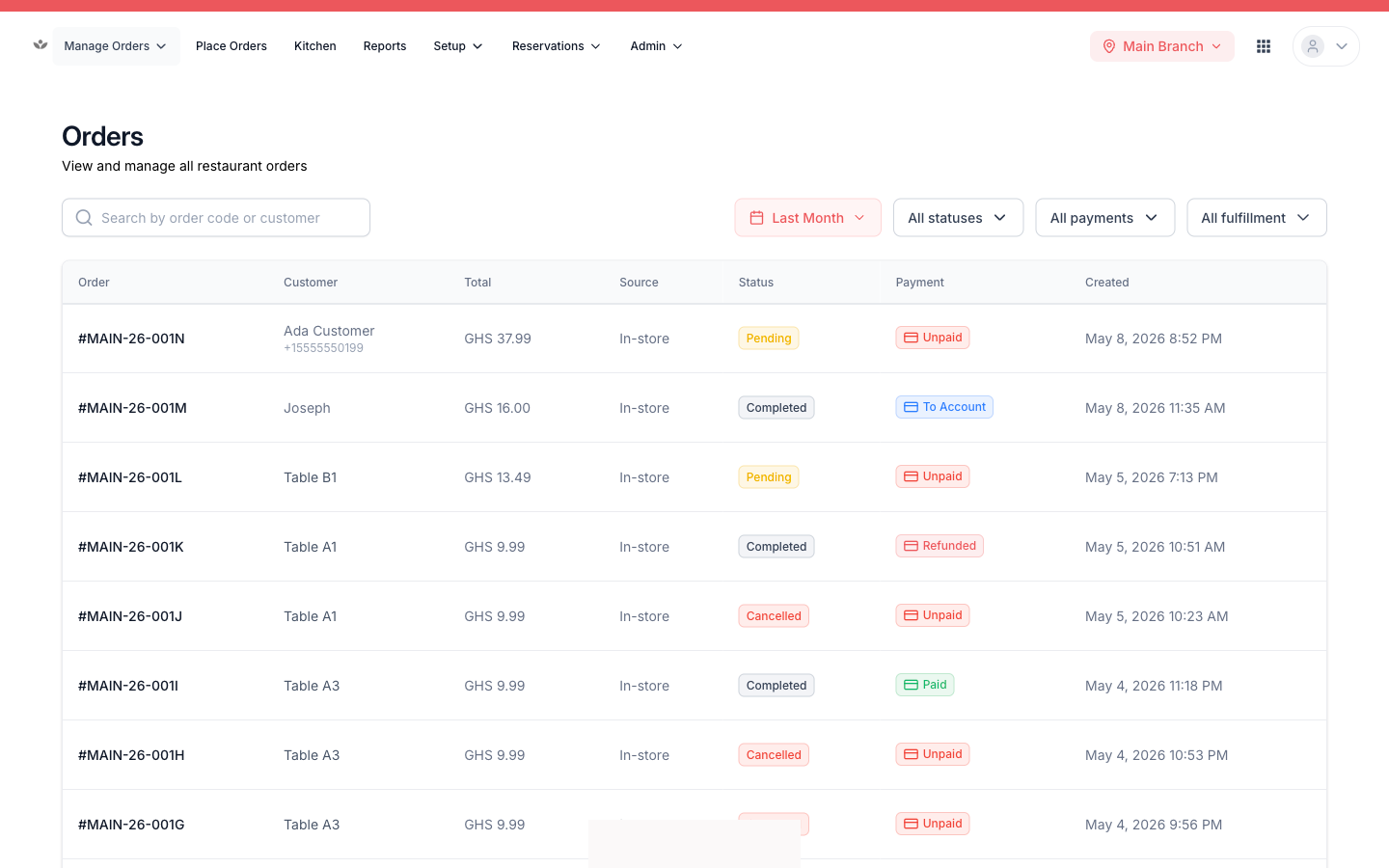
Find an order
- Go to Manage Orders.
- Use search (order code or customer name).
- Filter by status, payment status, fulfillment type, or date range.
- Or use the quick tabs: Dine-In, Delivery, Pickup.
Open order detail
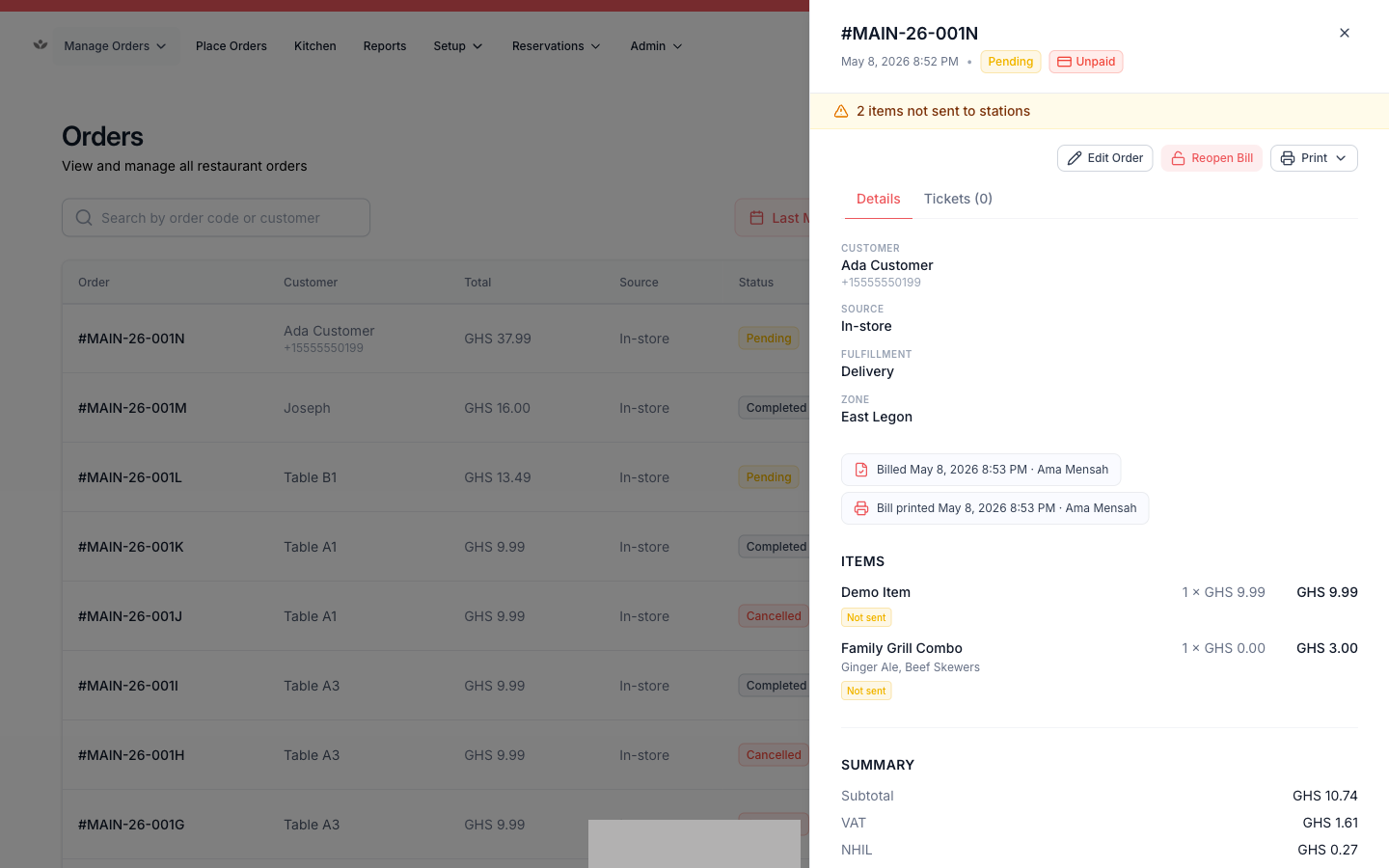
Select an order to open its detail slideover — items, totals, modifiers, customer, table, and fulfillment in one place.
Record a payment
- In the order, choose Add payment.
- Pick the method: cash, card, mobile money, bank transfer, credit, or complimentary.
- Enter the amount and save.
You can edit or remove a payment afterwards.
📷 Preview coming soon — The add-payment dialog with method options.
Permission
Recording, editing, and refunding payments are permission-controlled actions.
Edit, cancel, or refund
- Edit an open order to change items.
- Cancel an order, with an optional refund.
- Reopen a billed order to return it to editing.
- Replace an order to issue a replacement and void the original.
📷 Preview coming soon — The order actions menu.
Activity timeline
Every order keeps a full revision history — open the timeline to see what changed, when, and by whom.
📷 Preview coming soon — The order activity timeline.
Send to kitchen & print the bill
- Send to kitchen fires tickets to the prep stations.
- Print bill produces a thermal receipt for the customer.
📷 Preview coming soon — The send-to-kitchen and print-bill buttons on an order.