12. Admin & your team
Configure the business, your locations, and your staff — profile, operations, branches, staff, roles, and delivery zones.
Configure the business, your locations, and your staff.
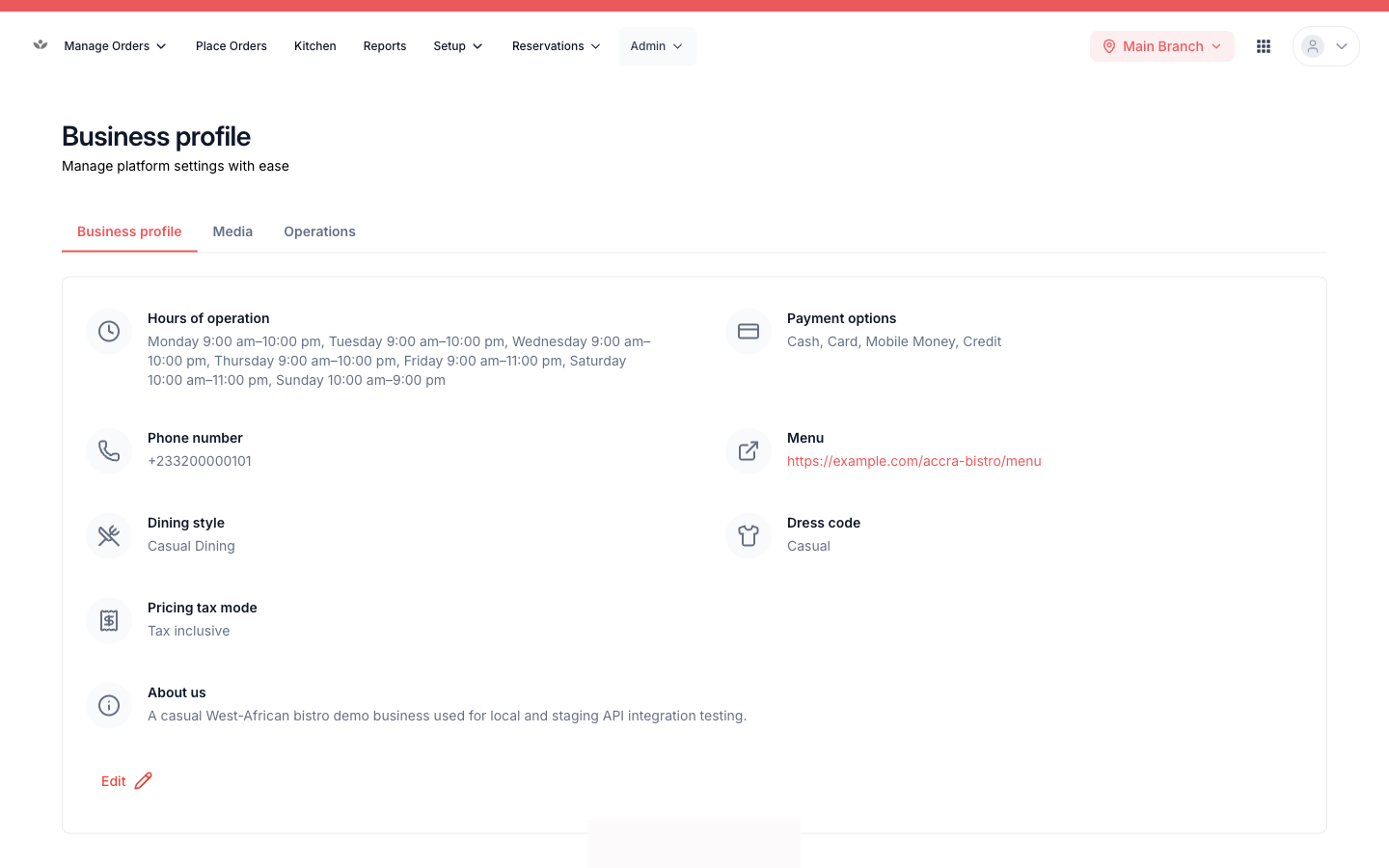
Business profile
Set your name, contact, public slug, logo, and cover photo. Harmony generates a public link and QR code customers can scan to view your restaurant.
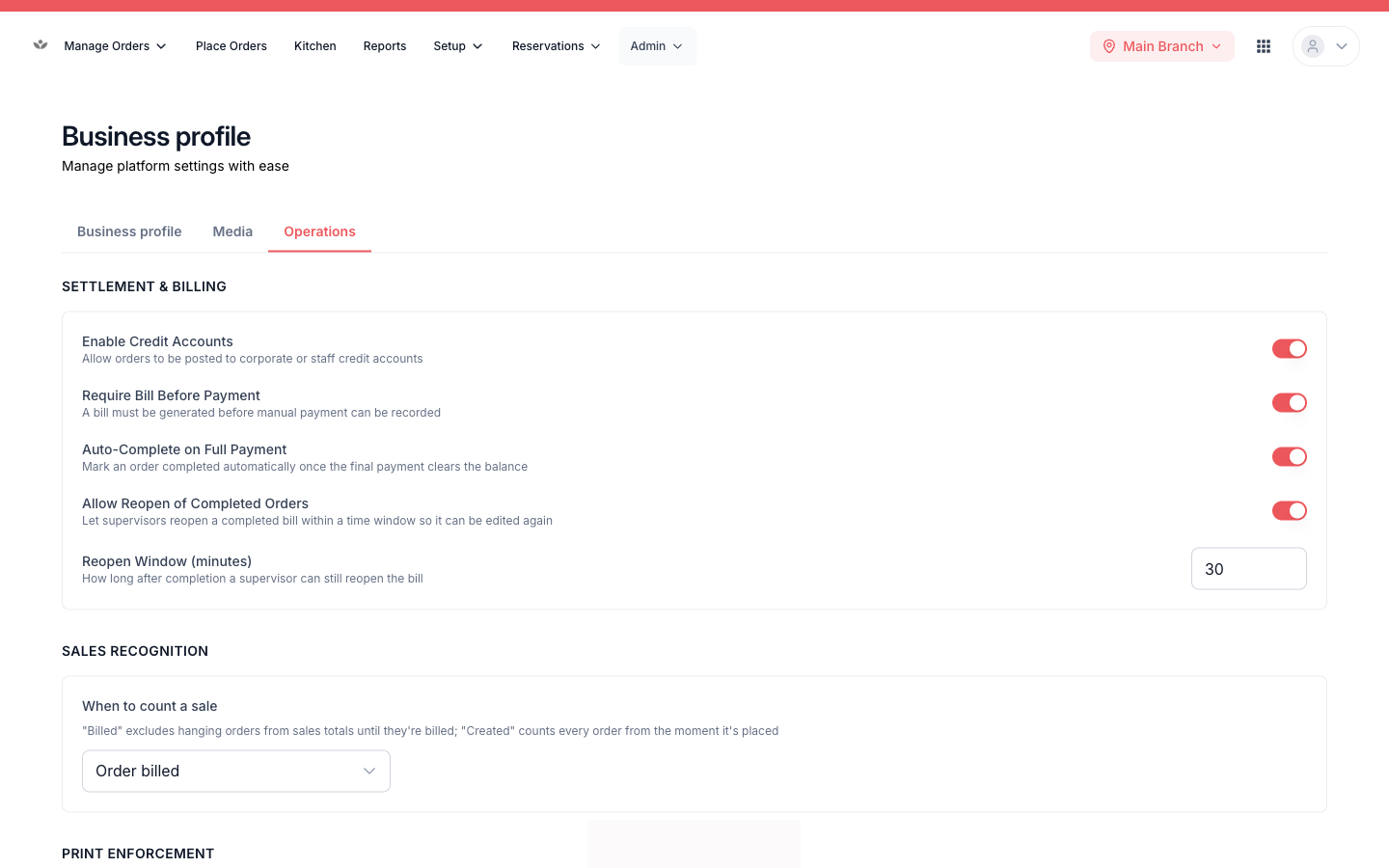
Operations
Set opening hours, dining style, seating options, auto-complete rules, and the credit-account toggle.
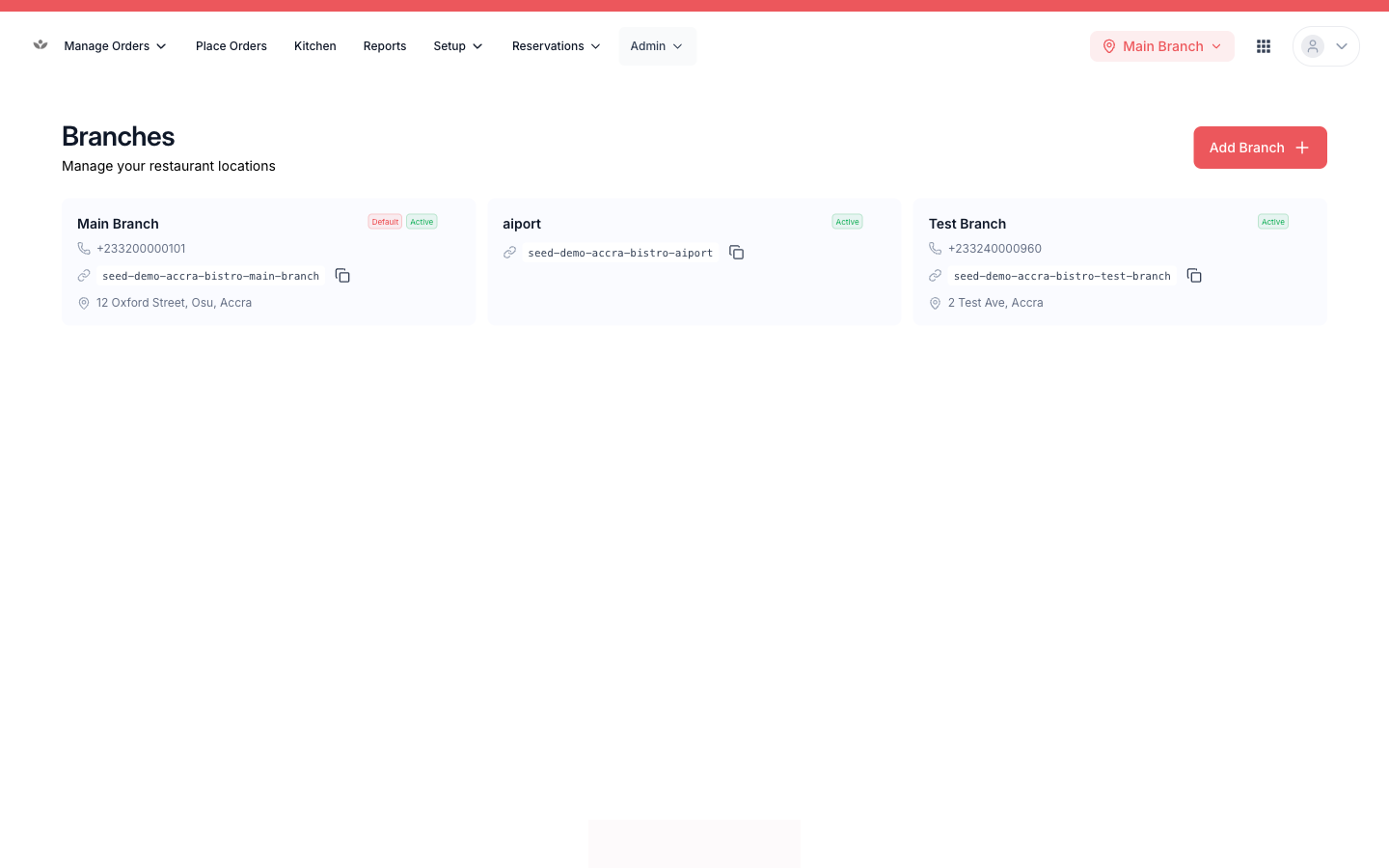
Branches
Add and edit locations, each with its own address, contact, media, and public link / QR.
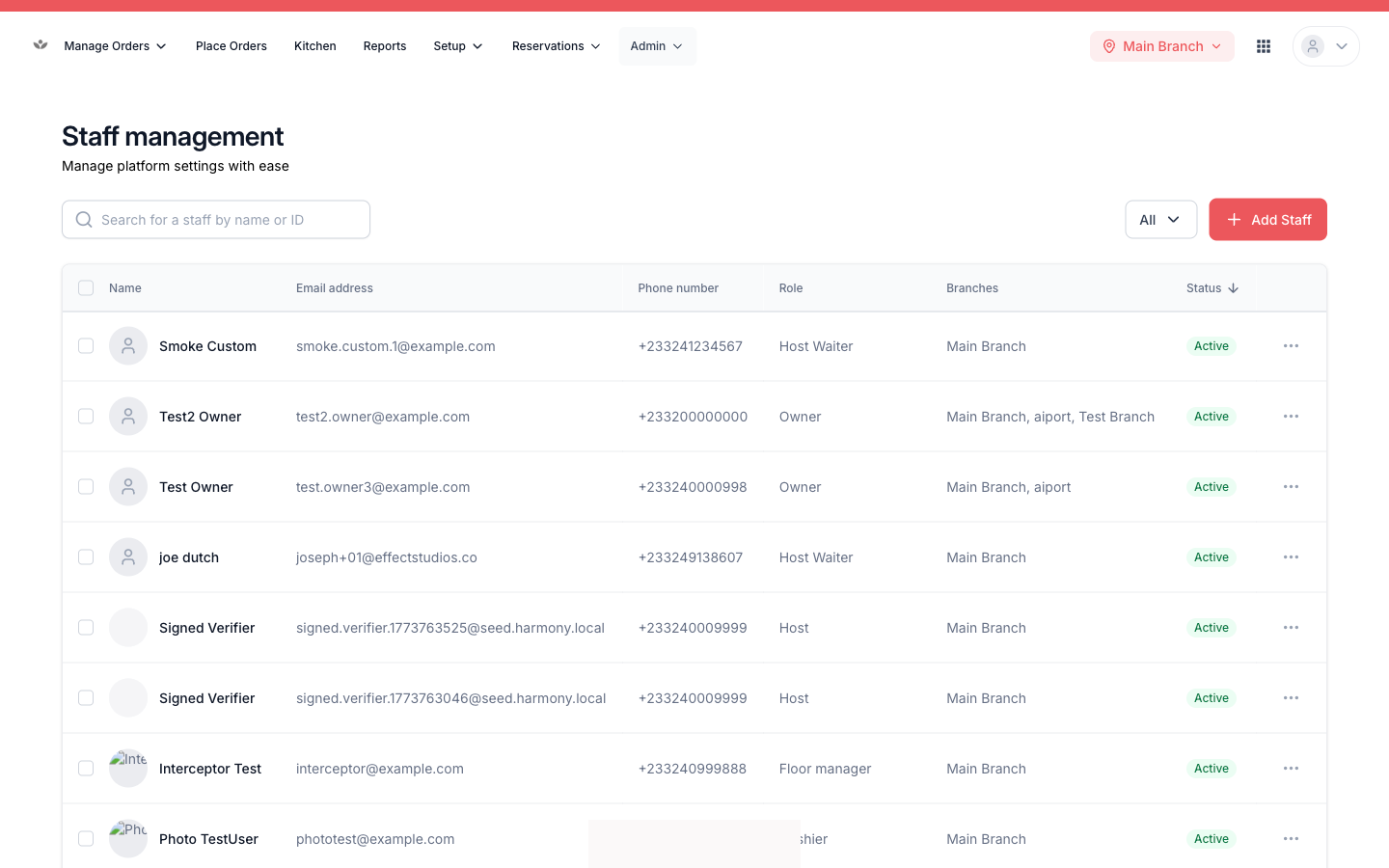
Staff management
- Go to Admin → Staff.
- Invite a staff member: email, role, and assigned branches.
- Edit access or deactivate an account when someone leaves.
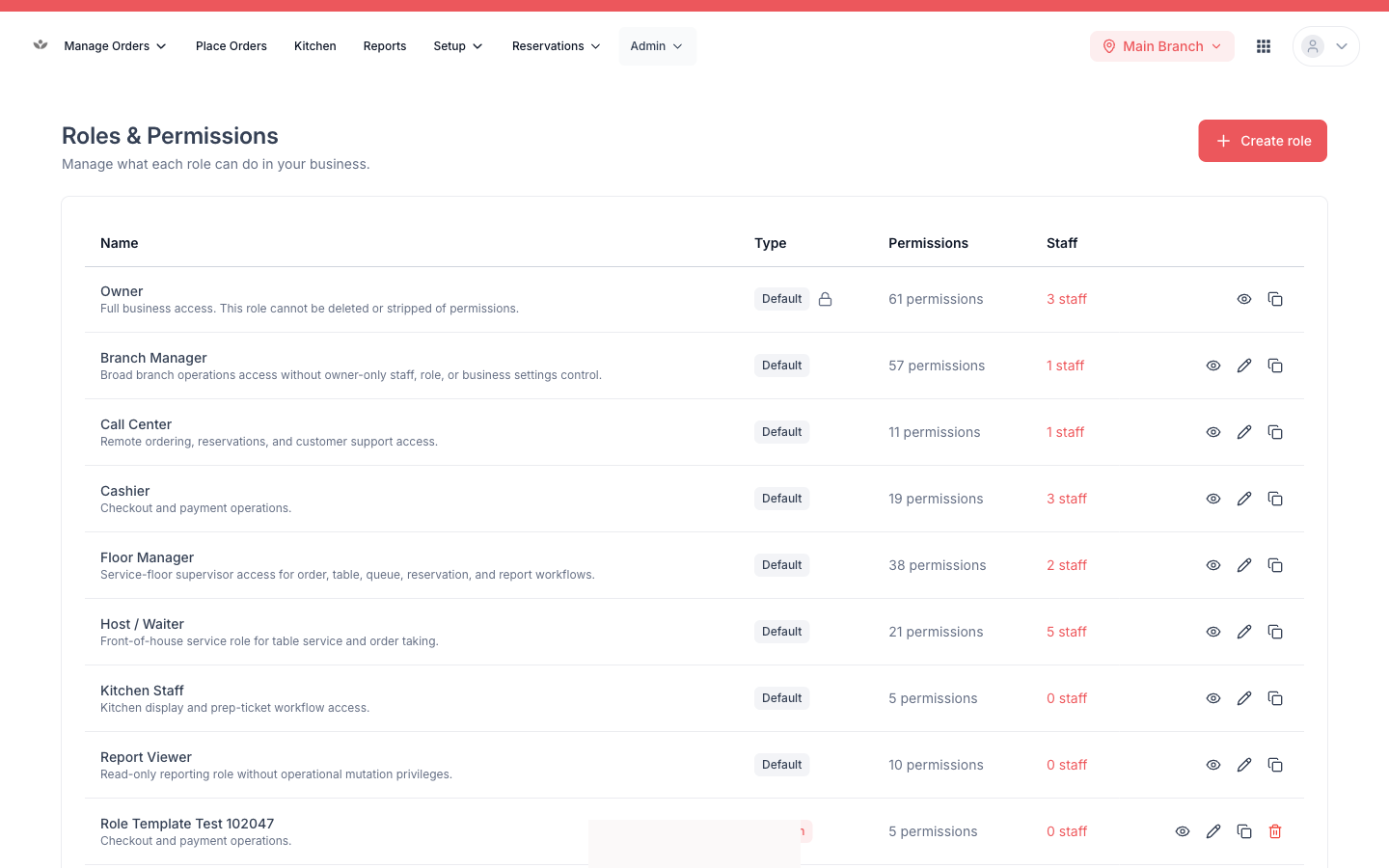
Roles & permissions
Owners build custom roles by toggling fine-grained permissions.
- Go to Admin → Roles.
- Create a role (or edit an existing one).
- Toggle permissions — e.g. “view sales report”, “issue refunds”, “manage menu”.
- Assign the role to staff.
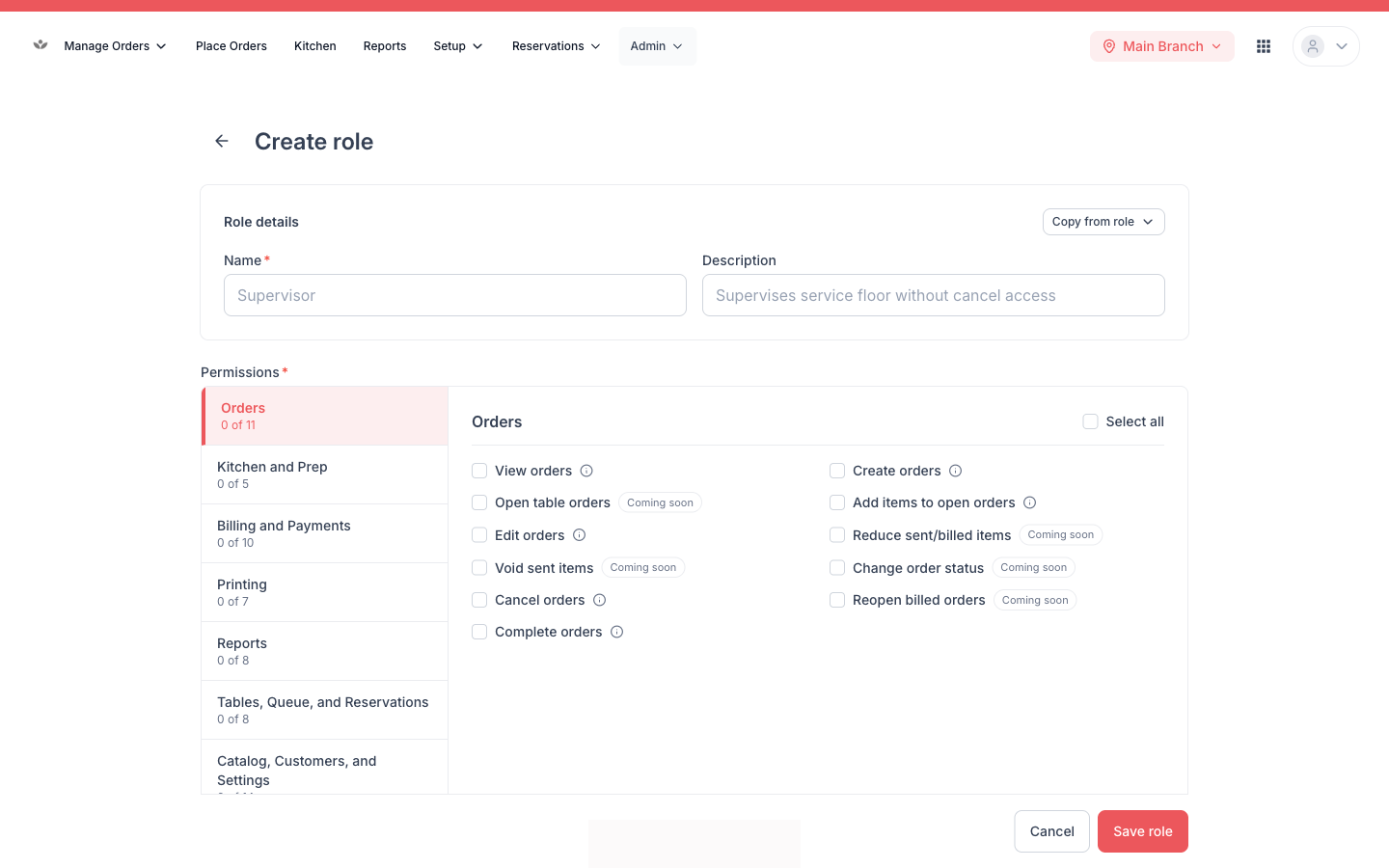
Permission
Only owners (and roles granted role-management) can create or change roles.
Delivery zones
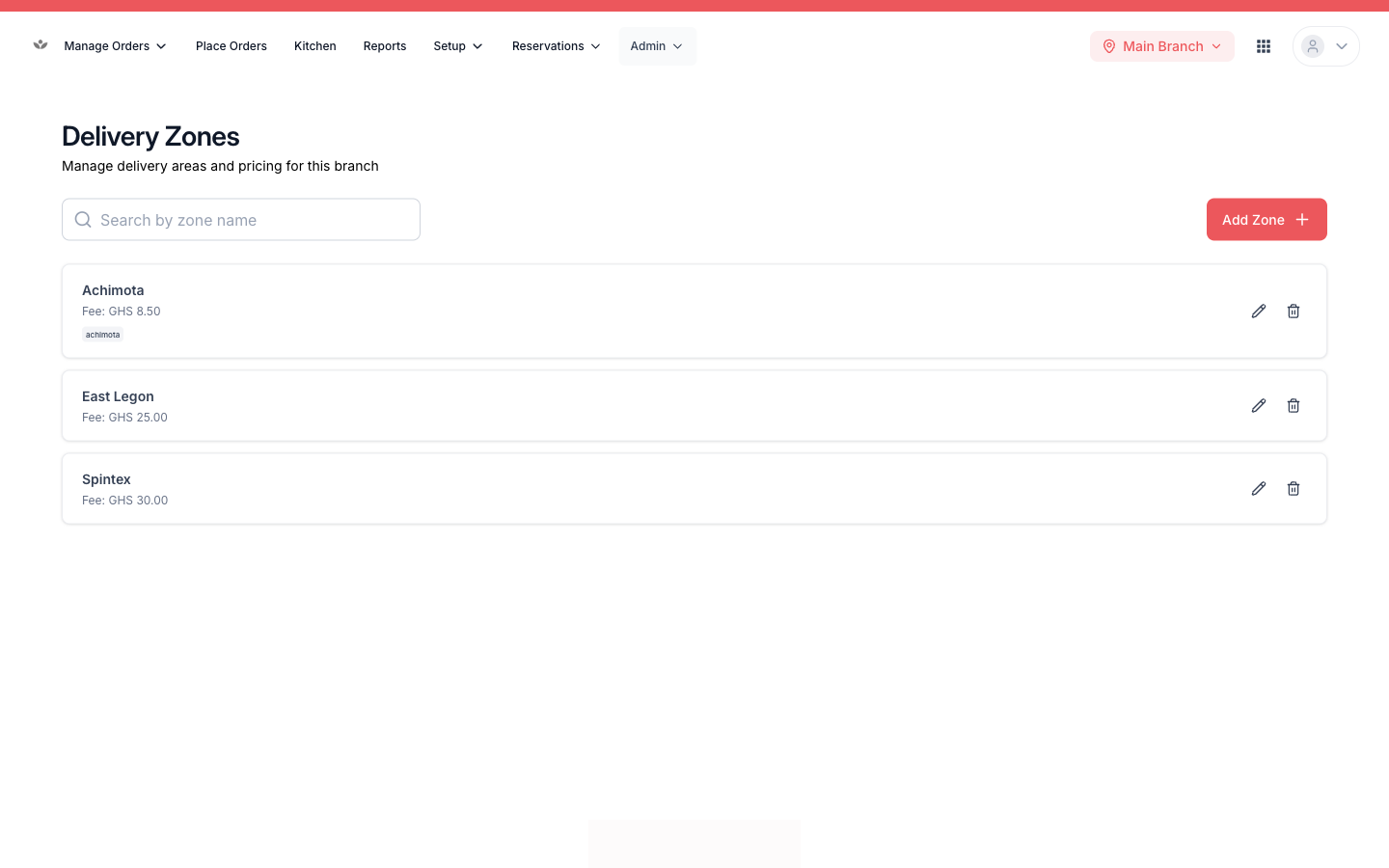
Per branch, define coverage areas and the delivery fee for each zone.