
5. Taking orders (Place Orders)
Place Orders is the fast till — start an order, add items, and bill it.
Place Orders is the fast till for taking orders.
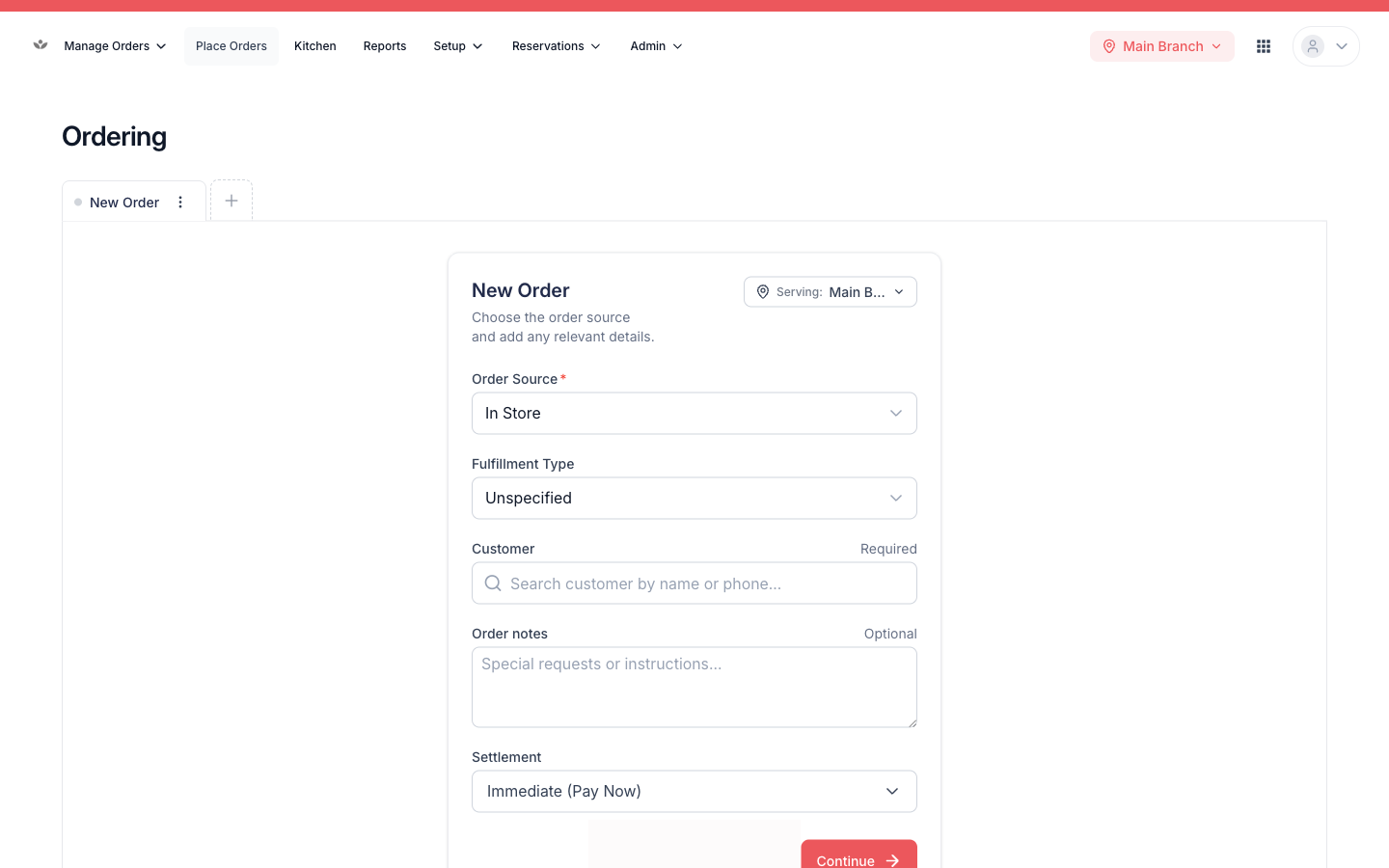
Start an order
- Go to Place Orders.
- Choose the fulfillment type — dine-in, delivery, or pickup.
- Set the table (dine-in), customer, and branch as needed.
Tip
You can keep several orders open at once in separate tabs — each keeps its own state, so you can switch between tables without losing anything.
Add items
- Browse or search the menu grid; filter by category.
- Tap an item; choose its options / modifiers.
- Watch the cart and running total update live.
📷 Preview coming soon — The live menu grid with the cart panel showing a running total.
Bill the order
- Review the items in the cart.
- Confirm the bill (this is the second step of two-step billing).
📷 Preview coming soon — The bill-review step before confirmation.
Delivery orders
For delivery, add the customer address and pick the delivery zone — the delivery fee is added automatically.
📷 Preview coming soon — The delivery details panel with zone and fee.
Edit, add to, or replace from the till
- Edit — change an open order.
- Add items — append to an order that's already billed.
- Replace — create a replacement for a billed or paid order (the original is voided).
📷 Preview coming soon — The till showing the edit / add-items / replace actions on an existing order.